If you’ve spent months or years building your blog, the last thing you want is to lose your content because of a plugin conflict, website crash, hacking attempt, or accidental mistake. Learning how to back up a WordPress blog is essential.
Yet many bloggers don’t think about blog backups until something goes wrong. It’s a common WordPress mistake that can have big consequences. I know this firsthand, as I’ve had situations in the past where I almost lost my website due to a poor backup system.
Backing up your WordPress blog is one of the most important parts of blog maintenance because it protects your posts, photos, pages, settings, themes, and plugins. It’s a core blog foundation activity.
When you have a good backup system, you can restore your site quickly without starting from scratch.
Backing up your WordPress website doesn’t have to be complicated. There are beginner-friendly methods that automate the process. If you want extra control, there are more advanced manual backup options too.

In this guide, you’ll learn:
- The top ways to back up WordPress
- The difference between manual and automated backups
- The best WordPress backup plugins
- How web host backups work
- Best practices for keeping your site safe
- The easiest backup method for beginner bloggers
DISCLOSURE: This post contains affiliate links, meaning if you click on a product or service, and decide to purchase it, I may receive a commission at no extra cost to you. All recommended products and services are based on my positive experience with them. For more information, please read my Disclaimer.
Bookmark this post on Pinterest for future reference.

Why Backing Up Your Website Is Important
Your website is more than just blog posts. There’s so much more to back up that can be restored if something goes wrong.
Your website also includes:
- Your WordPress database
- Theme customizations
- Plugin settings
- Images and media files
- SEO settings
- Contact forms
- WooCommerce data (if you use it for your shop)
Imagine trying to recover all of this lost content without having a backup. It would be extremely difficult, if not impossible.
I almost lost this website at one point, and the hosting provider wasn’t very forthcoming with restoring it with a backup. Having a solid backup system that works is priceless.
At some point in your blogging career, you will have a moment when you will be happy to have a website backup.
What Kind Of Issues Do Backups Protect Your Site From?
Think of backups as insurance for your blog. They protect your website from:
Backups protect your site from issues such as:
- Plugin or theme conflicts
- Failed updates (plugins, WordPress, theme updates)
- Malware or hacking
- Server problems
- Human error
- Broken websites after customization
You hope you never need a backup, but you’ll be grateful it exists if something goes wrong. This is particularly true if you’re a fairly new blogger still learning how to use WordPress.
The Difference Between Manual And Automated WordPress Backups
There are two methods for backing up a WordPress website: manual backups and automated backups.
If you’re a beginner blogger, automated backups using a blend of tools and hosting support are an easier option.
Automated WordPress Backups
Automated website backups happen automatically, based on your preferred schedule.
For example:
- Daily backups
- Weekly backups
- Real-time backups
- Monthly backups
Daily backups are when you’re changing lots of content on your website every day.
Weekly backups are good for most beginner bloggers.
Real-time backups are ideal when you’re working on updating plugins or your theme, and want to do a backup before you make changes.
Automated WordPress backups are ideal as they remove the risk of forgetting to back up the site manually.
Benefits of automated backups
Why should you consider automated WordPress backups?
They are:
- Beginner-friendly
- Time savers
- Consistent protection
- An easy restoration option
Downsides of automated website backups
Here are some reasons you may want to look at other backup options:
- Some plugins require paid plans
- Too many backup files can use up your storage (including hosting storage)
- Poorly configured plugins may slow your site slightly
While there are a few downsides, I prefer them over manual backups. For most bloggers, automated WordPress backups are the easiest and safest option.
Manual Backups
Manual backups involve downloading your WordPress files and database yourself.
While this method gives you more control, it’s more technical.
Benefits Of Manual WordPress Backups
Some of the top reasons for doing a manual website backup include:
- Full control over files
- No need to add a plugin
- Useful before major site changes
Downsides of manual backups
The key reasons you may not want to do a manual backup is because it can be:
- Time-consuming
- Easy to forget
- An advanced process
- Challenging for beginners with increased mistakes
Manual backups work best for advanced users or as an additional layer of protection alongside automated backups.
Let’s look at all three ways to back up a WordPress website.
Top 3 Ways To Back Up A WordPress Website
There are three main ways to back up a WordPress blog:
- Web host backups
- Backup plugins
- Manual backups
It’s best to use more than one method. It’s often the safest approach.
1. Web Host Backups
The easiest and most reliable way to protect your blog is with backups through your web host provider.
If you have a quality web hosting provider, they will automatically create daily backups for your website. This is usually done behind the scenes at the server level, without you needing to do anything.
This is often the best first line of protection. Hosting backups usually include:
- WordPress files
- Databases
- Email accounts
- Website settings
If your website becomes completely inaccessible — for example, you can’t log into your WordPress dashboard — the hosting company can often restore the website directly from the server.
What To Look For With Hosting-Level Backups
While cheaper hosting plans can be appealing for beginners, they often lack WordPress backups.
Look for hosts that provide:
- Daily automatic website backups
- One-click restores
- Multiple restore points
- Off-site backup storage
- Easy backup downloads
Some cheaper hosting plans either don’t include backups or charge extra restoration fees. Before choosing your website hosting, always check their backup policy carefully.
PRO TIP: The hosting provider that I love to use is NameHero. They provide server-level daily backups without any extra charges.
How To Access Hosting Backups
With beginners, it’s best to get help from customer service with restoring website backups. However, if you want to do it yourself, you can look at your hosting backup yourself.
Every hosting dashboard looks different, but the process is usually similar. Here are general steps you can take to access your backup.
Step 1: Log in to your hosting account
Go to your hosting provider’s dashboard or control panel.
Step 2: Find the backup section
Look for areas labelled:
- Backups
- Site Management
- Website Tools
- Security
- Restore Points
Step 3: Choose a backup date
Select a backup version from before the issue occurred.
Step 4: Restore the website
Most hosts offer a one-click restore option.
Some also allow you to restore only:
- Files
- Databases
- Emails
- Specific website sections
Step 5: Test your site
After restoring, check your:
- Homepage
- Blog posts
- Plugins
- Contact forms
- Mobile version
Make sure everything works properly again.
2. WordPress Backup Plugins For Beginners
The easiest way to back up a WordPress website is to use a plugin. You can automate these backups without needing much technical knowledge.
Most plugins can:
- Schedule automatic backups
- Store backups in your preferred spot (cloud-based)
- Restore your site quickly
- Back up files and databases separately
Let’s take a closer look at the best plugins for WordPress backups.
Recommended WordPress Backup Plugins
Here are some of the most popular and beginner-friendly options.
UpdraftPlus
UpdraftPlus is one of the most widely used backup plugins for WordPress bloggers, and the one I’m using for all of my websites. It’s easy to set up and works very well.
Features include:
- Automatic scheduled backups
- Google Drive integration
- Dropbox storage integration
- One-click restoration
- Beginner-friendly setup
This is often the easiest recommendation for newer bloggers. All you need is the free version.
WPvivid
Another popular free WordPress backup plugin is WPvivid. It combines backups, restoration, staging, and migration tools in one dashboard.
Features include:
- Automatic scheduled backups
- Cloud storage integration
- One-click website restoration
- Site migration tools
- Staging and cloning features
WPvivid (pro) is especially useful for bloggers who want both backup and migration functionality without needing multiple plugins. The free version includes many features that newer bloggers often need when managing and protecting a growing WordPress site.
All-in-One WP Migration
This is a beginner-friendly WordPress plugin designed to simplify website backups, exports, and migrations.
Unlike the other two I’ve shared here, it requires manual updates.
Features include:
- Full website exports
- Easy site migration tools
- One-click website imports
- Drag-and-drop backup restoration
- Compatibility with most hosting providers
All-in-One WP Migration is especially helpful for bloggers moving their site to a new host or creating a backup copy before making major website changes.
Why it’s listed here is that it has a simple interface. It makes it one of the easiest tools for WordPress backups for non-technical users.
How To Back Up WordPress Using a Plugin Step-by-Step
Each plugin is going to be different, and not all have automatic backup options. However, here are the general steps. This example uses UpdraftPlus because it’s beginner-friendly and the most popular free option:
Step 1: Install the plugin
Inside WordPress:
- Go to Plugins. Click “Add New”
- Search for “UpdraftPlus”
- Click Install
- Click Activate
Step 2: Open the backup settings
After activation:
- Go to your dashboard
- Click UpdraftPlus Backups
It may show up under your Settings.
You’ll see options for backups, restoration, and scheduling.
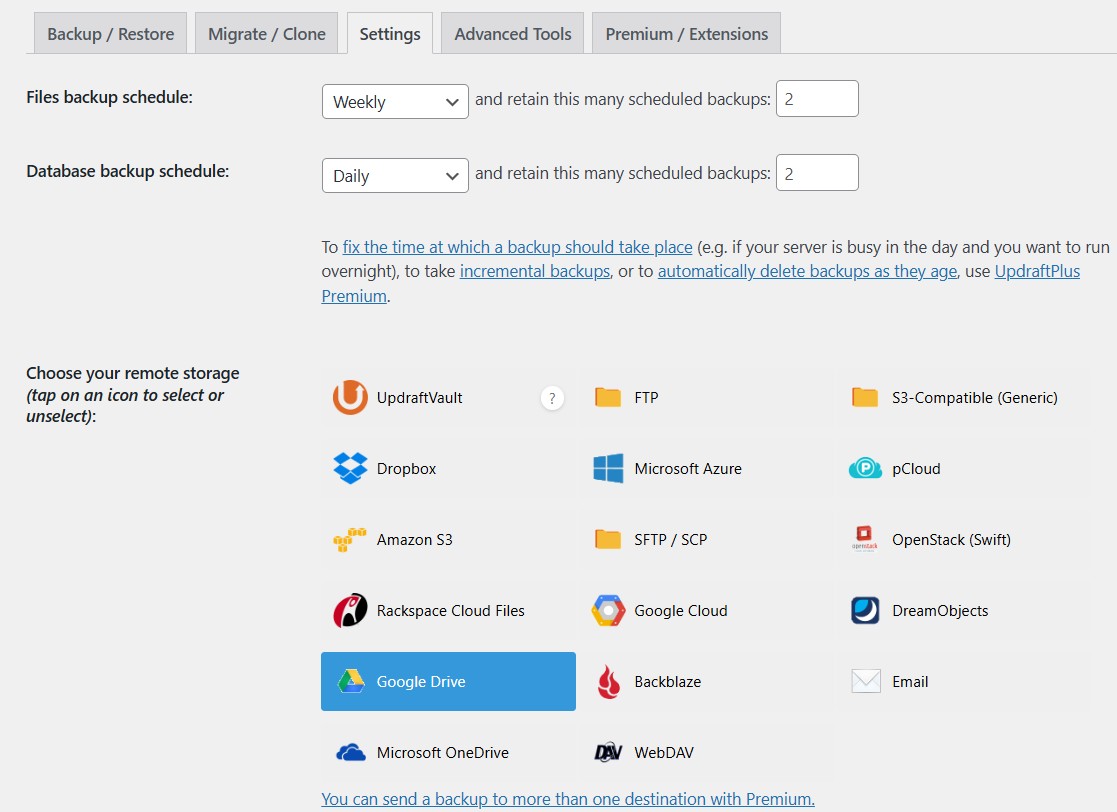
Step 3: Choose your backup schedule
Select how often you want backups to run.
Most bloggers should choose:
- Files: Weekly
- Database: Daily
If you publish content frequently, daily backups are ideal.
Step 4: Connect cloud storage
Your next step is to choose a storage option such as:
- Google Drive
- Dropbox
- OneDrive
- Amazon S3
Choosing cloud storage is a smart idea. It keeps backup files separate from your website hosting account. If, for any reason, the hosting server crashes completely, your cloud backups remain safe.
When you choose your cloud storage option, you may have to authenticate and connect it. For example, I use my Google Drive for one of my email accounts. I had to authenticate it.
Step 5: Run your first backup
Click “Backup Now.”
The plugin will create a full backup of:
- WordPress files
- Themes
- Plugins
- Uploads
- Database
You will have the option to choose what you want to back up. It’s best to include all items on your website.
Step 6: Verify the backup
Always confirm that the backup completed successfully.
Check:
- Backup timestamps
- Storage location
- Download availability
Always do a double check. Never assume backups are working without verifying them.
PRO TIP: Do a regular checkup to see if your backup is actually backing up, especially after the UpdraftPlus plugin has been updated.

Make WordPress Website Backups Part Of Your
Regular Maintenance
Manual Backup (Advanced)
If you’re an advanced blogger who wants extra control, a manual backup — that’s more technical — may be your choice.
A full manual backup involves:
- Backing up WordPress files
- Backing up the database
Part 1: Backing Up WordPress Files
Your website files include:
- Themes
- Plugins
- Uploads
- Media files
- WordPress core files
There are two ways to access these files:
- Through your hosting provider’s File Manager (usually found in the cPanel)
- Through FTP
For beginners, File Manager is usually easier. This is the option we’ll focus on here. You may see slightly different layouts and names. It’s best to check with your hosting provider to see if they have their own specific instructions for manual backups on their platform (which they should).
Step 1: Log in to your hosting account
Go to your hosting provider dashboard and open your control panel.
Depending on your host, this may be called:
- cPanel
- Site Tools
- Hosting Dashboard
- File Manager
Step 2: Open File Manager
Locate the File Manager section. This is where your website files are stored.
Step 3: Find your WordPress installation folder
Most WordPress websites are located inside one of these folders:
- public_html
- www
- htdocs
Click into the correct main folder where your WordPress website is installed. This is usually public_html.
You should now see folders such as:
- wp-admin
- wp-content
- wp-includes
Step 4: Compress your website files
Select all your WordPress files and folders.
Then click (depending on your hosting panel)
- Compress
- Zip
- Archive
This creates a downloadable ZIP file of your website. You may need to right-click to see the option list to find this.
Step 5: Download the ZIP file
Once the ZIP file is created:
- Right-click the file
- Choose Download
Save it to your backup folder on your computer.
Part 2: Back Up Your WordPress Database
You now need to back up your WordPress database, which includes:
Your database contains:
- Blog posts
- Pages
- Comments
- Settings
- Plugin configurations
- User accounts
Without the database, your content cannot be restored properly. Let’s look at the next steps:
Step 1: Open phpMyAdmin
Inside your hosting dashboard, look for:
- phpMyAdmin
It’s usually located under sections like:
- Databases
- Website Tools
- Advanced Settings
Click phpMyAdmin to open it. A new screen will appear showing your databases.
Step 3: Find Your WordPress Database
You’ll see a list of database names. Click the database connected to your WordPress website.
If you’re unsure which database belongs to your site:
- Open your File Manager
- Locate the wp-config.php file inside your WordPress installation
- Right-click and choose View or Edit
- Look for this line:
define('DB_NAME', 'your_database_name');The database name listed there is the one connected to your WordPress site.
Step 4: Click the Export Tab
Once your database is selected:
- Look at the top menu inside phpMyAdmin
- Click Export
Step 5: Choose Export Settings
For most bloggers, the simplest option is best.
Select:
- Quick export
- SQL format
The SQL format creates a downloadable file containing your database information.
Step 6: Download Your Database Backup
Click, depending on your hosting panel:
- Go
- Export
Your database backup file will automatically download to your computer as an .sql file.
Step 7: Save and Organize Your Backup
Move the downloaded file into your backup folder and label it clearly.
Organize Your Backup Properly
Once both WordPress backups are downloaded, keep them together in one clearly labelled folder.
Example:
- suburban-tourist-backup-may-2026
- website-files.zip
- database.sql
You want to make restoring your website an easier process. This extra step takes only a few minutes but can save you lots of time and effort in emergency situations.
Important WordPress Backup Tips
You now have a good idea of how to back up a WordPress blog.
My key recommendation for new bloggers, and even more advanced bloggers, is to use a WordPress plugin like UpdraftPlus. It’s very easy to use and can save you hours of time.
- Keep multiple backup versions. Don’t rely on only one backup copy. Keep older versions in case your newest backup contains problems.
- Store backups in cloud storage. Upload copies to places like Google Drive, Dropbox or external hard drives. Never store backups only on your hosting account.
- Create backups before major changes such as adding new plugins, updating WordPress, changing themes, making code edits or redesigning your pages.
- Test your backups regularly. A backup is only good when it’s working properly. If you have a staging site set up for your blog, test restoring your backup there.
Whichever route you take – whether it’s hosting backup + plugin, or hosting backup + manual backup- the most important thing is to make sure it’s capturing everything you need to back up.
Learning how to back up a WordPress website is a technical skill that many bloggers pursue. By taking the time to learn about WordPress backups, you’re way ahead in maintaining your blog successfully.
Learn more about other WordPress plugins that help you run your website.
Discover a simple monthly website maintenance routine that includes regular backup checks.
QUESTION: Which approach will you take with your WordPress backups?
Want more blogging advice from Margaret?
Add MargaretBourne.com as a Preferred Source so Google can highlight more of my blogging advice for you in Search, AI Overviews and AI Mode.