It’s easy to get excited about starting a WordPress blog. However, the problem is that in all that excitement, it’s easy to make common WordPress mistakes that can turn into long-term issues later.
Slow site speed, broken layouts, security vulnerabilities, SEO problems, and even website crashes usually begin with habits formed early on.
The good news is that most of these problems are preventable once you know what to watch for. As an online blog coach and long-time WordPress user (since 2012), I’ve both made some of these mistakes myself (learning the hard way) and seen others make them too.
I don’t want you to make the same mistakes I did! They set me back when I could have been spending time on activities to grow my blog faster.
In this blog post, we’ll explore 10 WordPress mistakes new bloggers often make and how to fix them.

DISCLOSURE: This post contains affiliate links, meaning if you click on a product or service, and decide to purchase it, I may receive a commission at no extra cost to you. All recommended products and services are based on my positive experience with them. For more information, please read my Disclaimer.
WordPress Mistakes I Made As A New Blogger
Before you start feeling like you’re the only one who’s making silly mistakes with WordPress, know that you aren’t.
Although I rarely make these WordPress mistakes now, when I started working with this platform in 2013, I made many back then.
The key mistakes I made as a beginner WordPress user were:
- Adding slow plugins (slowed down my website load speed)
- Setting up caching plugins incorrectly (crashed my website a few times)
- Using cheap hosting that couldn’t handle my growing blog traffic
- Using large image files (again, slowed down my site speed)
- Choosing a theme that was slow and bloated
So you see, you’re not alone if you’re finding yourself with website errors or issues.
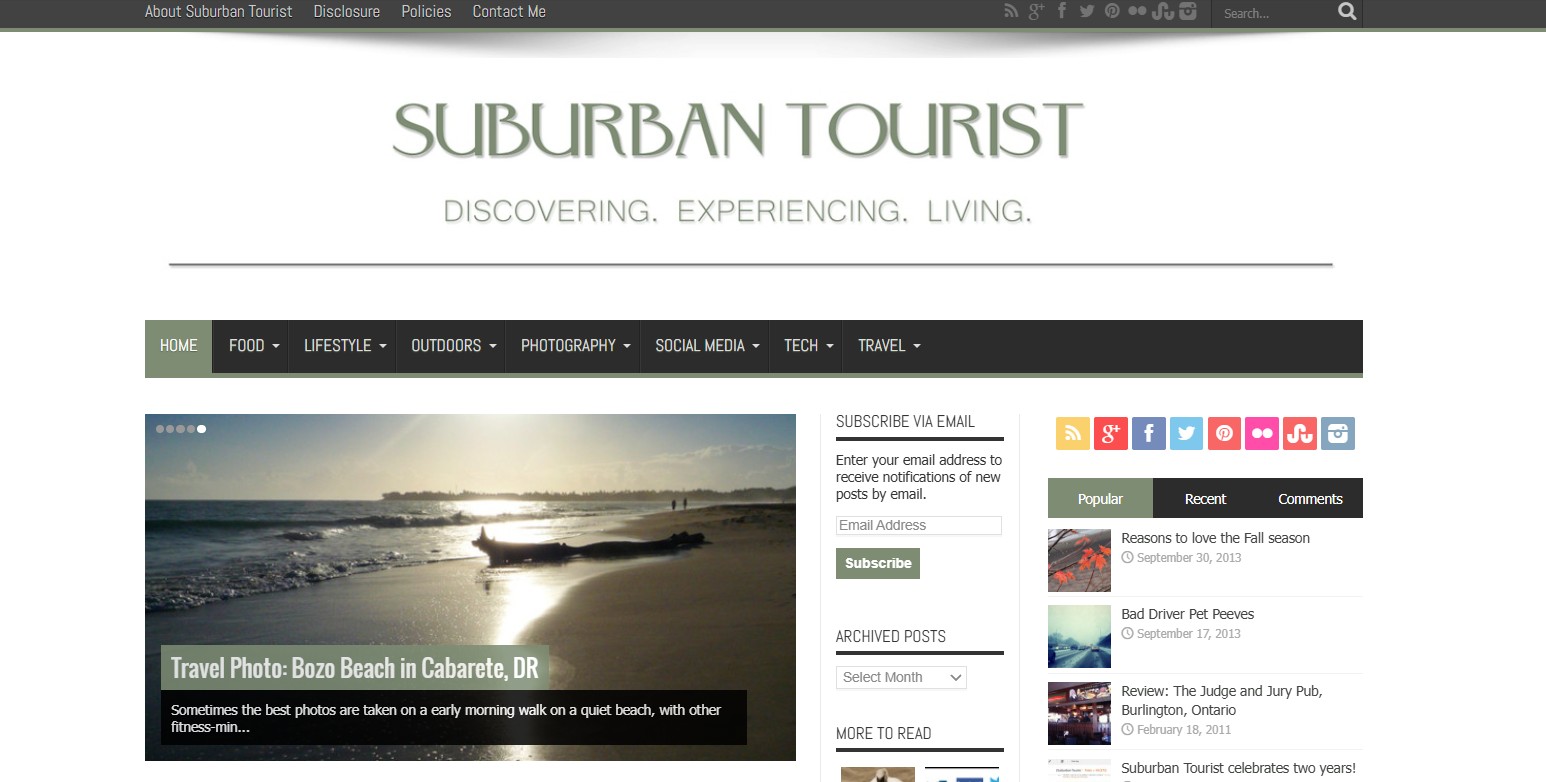
Here’s my Suburban Tourist blog as it looked in 2013. I had so many issues making it look and run like a professional blog:
Instead of learning the hard way as I did, I’m sharing the most common WordPress mistakes new bloggers make — and tips on how to avoid them.
I don’t want you to experience the frustration that I did. There were times I thought of quitting my blog because of errors that seemed unfixable.
Let’s look at how to avoid these mistakes in the first place!
1. Ignoring WordPress Core, Plugin, And Theme Updates
One of the most common WordPress mistakes bloggers make is delaying updates. They fear that something may break.
You need to do WordPress updates regularly! This is non-negotiable. They help with security, compatability and performance. Outdated plugins and themes are one of the biggest causes of hacked WordPress websites because hackers target known vulnerabilities.
Here’s what ignoring updates can lead to:
- Malware infections
- Broken website functionality
- Plugin conflicts
- Slow performance
- Security breaches
- Website crashes
NOTE: If you’re using old plugins that are no longer maintained by developers, these issues may pop up. It’s good to do a quarterly check to see if they are up-to-date and if there are alternatives.
How To Avoid This WordPress Mistake
Create a simple monthly WordPress maintenance routine that includes:
- Updating the WordPress core
- Updating plugins
- Updating themes
- Removing unused plugins (and unmaintained plugins)
- Testing forms and important pages afterward
Before you do any regular updates, ALWAYS back up your website. I use Updraft Plus (free version) to do a manual backup of my website before I update the WordPress core platform, plugins or themes.
You may also want to create a staging site via your hosting provider if you’re doing major updates.
This is a good practice for bloggers learning the basics of WordPress website maintenance for beginners.
2. Choosing Cheap Web Hosting That Cannot Grow With Your Blog
Many new bloggers start with the cheapest hosting plan possible to save money.
It may seem like a good idea for a beginner blogger. However, low-quality hosting can create problems as your blog grows. This leads to frustration, time wasted fixing issues, and potentially you giving up blogging altogether.
Poor hosting can affect your:
- Website speed
- SEO performance
- User experience
- Site uptime
- Dashboard responsiveness
- Database stability
As your traffic grows, an entry-level hosting plan will struggle to keep up. You may start seeing slow-loading pages, backend lag, or “Error Establishing Database Connection” messages.
How To Avoid Hosting Problems Later
To avoid making this blogging mistake, choose reliable WordPress hosting that can support long-term blog growth.
Look for good hosting providers that include:
- Daily backups
- Better security features
- Staging sites
- Faster servers
- Server-level caching
- Helpful technical support
You don’t need expensive hosting immediately. You can get shared hosting for WordPress websites that offers stability and scalability instead of simply the lowest monthly price.
PRO TIP: Look at independently-owned hosting providers such as NameHero, SiteGround, Lyrical Host or BigScoots. These offer quality and are great for bloggers seeking a long-term hosting platform. I’m with NameHero and love their customer service.
3. Installing Too Many WordPress Plugins
Plugins are some of the best things about WordPress. However, adding too many to your website may hurt your site’s performance.
While some are lightweight, well-coded WordPress plugins, others can be speed hogs. Unless you’ve done your research, you may be inadvertently
Many beginner bloggers install plugins for every small feature. They don’t realize that too many plugins can create conflicts, database bloat, and slower page loading times.
Common plugin errors include:
- Multiple SEO plugins
- Several security plugins, doing similar tasks
- Heavy design plugins
- Plugins that are used once and never used again
- Outdated plugins are no longer needed
How To Avoid Plugin Overload
Make auditing your plugins a quarterly website maintenance activity.
Ask yourself:
- Is this plugin still necessary?
- Does another plugin already handle this feature?
- Is the plugin regularly updated?
- Can my theme already do this natively?
Delete inactive plugins completely rather than simply deactivating them.
Be aware that it’s not only the number of plugins that you have installed. It’s also the quality: poorly coded plugins can cause big issues on your site.
Stick with lightweight, well-coded, reputable plugins that are actively maintained and widely trusted within the WordPress community.
Sometimes the question I get as a blog coach is, “How many plugins should I have, maximum?” There is no set number, as every website has different needs in terms of functionality. However, less is better. Most websites have between 20 and 30. If there are alternatives that don’t require a plugin that can slow down your site, go for them!
PRO TIP: Read plugin reviews. Check the latest chatter and commentary to see if a plugin is breaking websites. Also, check to see when the last time it was updated by the plugin creator.
3. Uploading Large Images Without Optimizing Them
One of the biggest website speed mistakes bloggers make is uploading oversized image files directly from their phones or cameras.
When you’re using large image files, they slow down your page loading speed. This can turn site visitors off. They expect pages to load fast, especially on mobile devices.
When you add too many slow-loading, large image files to your website, you can expect:
- Poor Google Core Web Vitals scores
- Lower SEO rankings
- Higher bounce rates
- Slower mobile performance
- Longer page load times
For lifestyle bloggers, food bloggers, and travel bloggers, especially, image optimization is a necessary step for maintaining good site performance.
How To Optimize Images For WordPress
Here’s what I do to optimize my images, without having to use plugins. Before uploading images, I:
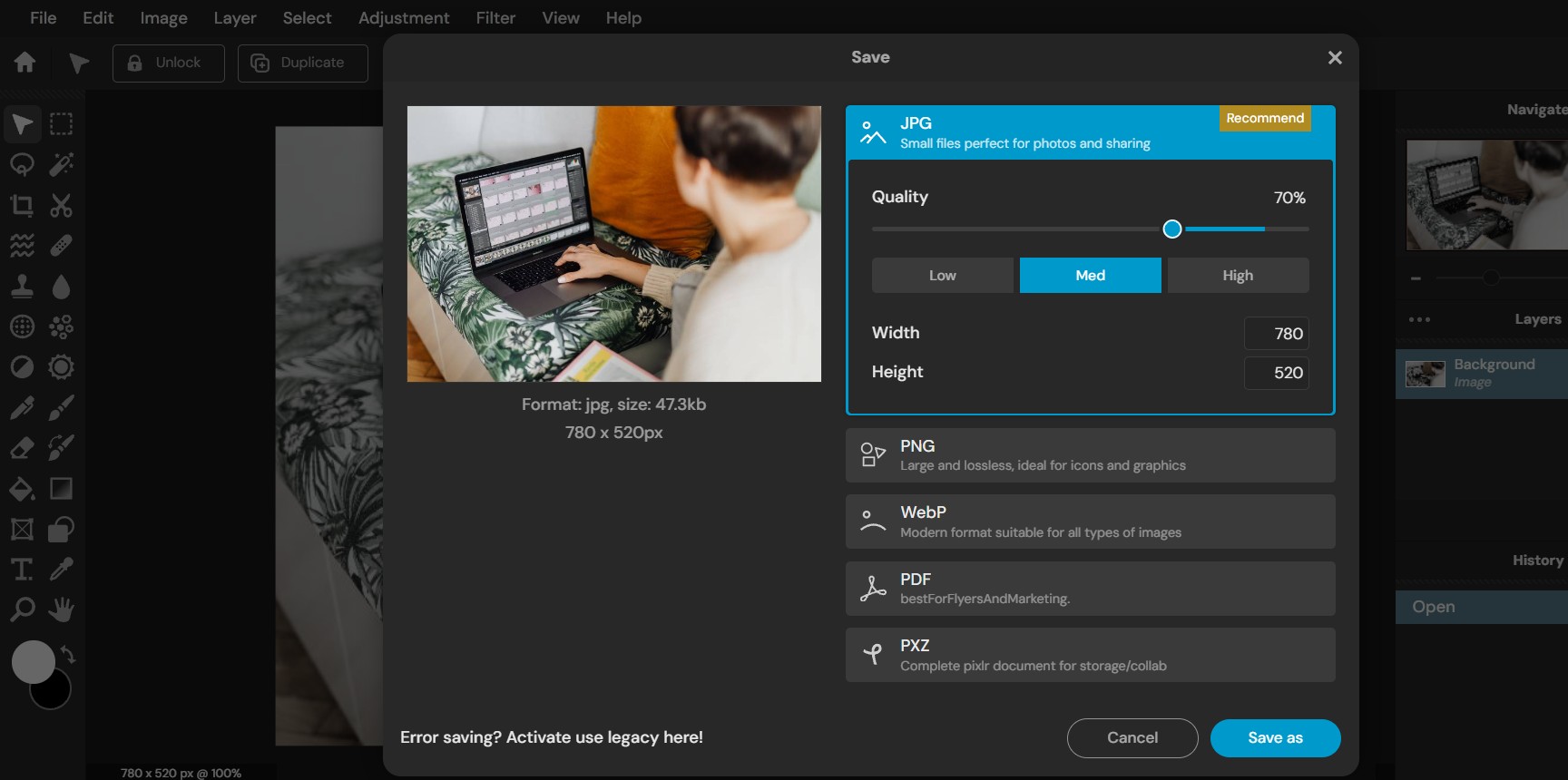
- Resize them to web-friendly dimensions (in my case, images within my blog post are at about 780 x 520 px, feature images are 1280 x 960 px)
- Compress image file sizes
- Use JPG or WebP formats when possible
I use Pixlr-E, an online photo editor, to quickly resize and save at 70% for JPGs. I can also save images manually as WebP.
If you don’t want to do this manually, you can use image optimization plugins, including:
- EWWW Image Optimizer – The free plugin can help to a certain degree, but if you want WebP images, it requires an upgrade.
- ShortPixel – Purchase credits and optimize and convert images as you need.
NOTE: Lazy loading is an important feature that’s offered with image optimization plugins. However, in some cases, your caching plugin does this as well. For example, WP Rocket includes lazy loading. Lazy loading has images load as a site visitor scrolls down on your page, speeding up page loading.
4. Not Making Regular WordPress Backups
A common WordPress mistake you can make is thinking that your hosting provider is making daily backups for you. This may not be the case.
Even if yours does, it still may not be enough. Backup errors happen. They can be incomplete, difficult to restore or not recent enough when an issue happens (e.g. a weekly backup).
I know this from experience, as I almost lost this website a few years ago, due to an incomplete backup.
Without proper backups, a hacked site, plugin conflict, human error or failed update could result in losing years of content. Trust me when I say, it’s one of the most stressful experiences of my life.
How To Create A Reliable Backup System
It’s ideal to have a good multi-pronged WordPress backup strategy that includes:
- Automated backups. This can include a plugin or hosting provider that automatically does the backup for you.
- Off-site cloud storage. Where you store your plugin’s backup copy of your website (Dropbox, Google Drive)
- Regular backup testing. Check your website backups on a monthly basis to ensure they are backing up correctly.
- Multiple backup copies. Either a plugin and hosting provider, or either of them with a manual backup.
Popular WordPress backup tools include:
- UpdraftPlus (best option – automatic backups)
- WPvivid (automatic backups included)
- All-in-One WP Migration (manual backups)
I can’t stress enough how important it is to make sure your backups are working. Never rely on your hosting provider alone. Always check your automatic backups, as they may not be complete.
Make regularly backing up and/or checking your automatic backups part of your monthly blog maintenance checklist for your website.
5. Keeping Unused Themes And Plugins Installed
If you’ve tested a theme or plugin and forgot about it afterward, you aren’t the only one. Many bloggers make this common WordPress mistake.
Even if you don’t have a theme or plugin active, it can create a security vulnerability and clutter your WordPress installation.
What happens when you don’t remove these inactive themes and plugins?
They can lead to:
- Increased security risks
- Database clutter
- More update management
- More compatibility issues
How To Keep Your WordPress Clean And Organized
To avoid making this WordPress mistake, keep only:
- Your active theme
- One default backup WordPress theme
- Plugins you actively use
Delete everything else completely.
A cleaner WordPress website is easier to maintain, troubleshoot, and secure long-term. Learning how to avoid WordPress mistakes related to plugins and themes leads to good habits over time.
Anytime you add a plugin, make sure to delete it if it’s not doing what you want it to do.
PRO TIP: You will most likely need to remove your old theme(s) in your cPanel when you’re logged into your hosting. Plugins can be removed easily from the WordPress dashboard — just deactivate and delete.
6. Forgetting To Turn Off “Discourage Search Engines”
A top WordPress mistake new bloggers make is not turning off the “Discourage Search Engines” in the WordPress dashboard. It’s a mistake that affects your search engine optimization (SEO) and visibility in search engines like Google, Bing and others.
It is this one here, in the WordPress dashboard, under Settings / Reading:
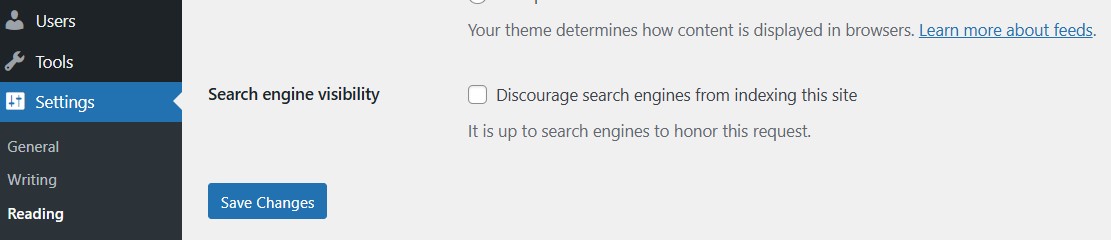
When setting up their website, new bloggers will often block search engines from indexing their blog.
However, it’s very easy to forget to turn them back on before launching!
Those who forget often wonder why their blog isn’t showing up on Google and other search engines. They may be missing out on weeks to months of organic traffic because they haven’t toggled it off.
How To Check Your WordPress Indexing Settings
Inside WordPress:
- Go to Settings / Reading
- Make sure “Discourage search engines from indexing this site” is unchecked
Your next step is to encourage search engines like Google to discover your content quickly. To do this, head over to Google Search Console (set this up if you haven’t yet), and submit your sitemap. Within a few days to a few weeks, your blog should start appearing in search results.
This is one of the easiest SEO mistakes new bloggers can avoid.
7. Using Weak Usernames And Passwords
Usernames like “admin” or “administrator” make your WordPress login easier to target through brute force attacks.
Using simple, weak passwords creates even more risk, especially as your blog grows and becomes more visible online.
How To Improve WordPress Login Security
As a new blogger, make these changes:
- Unique usernames
- Strong passwords
- Two-factor authentication
- Login protection tools
The best free WordPress plugin that helps you with a secure login is Wordfence Security (free version is OK). It can limit login attempts and monitor suspicious activity.
8. Not Improving Website Speed Until It Becomes A Problem
Another common WordPress mistake beginner bloggers make is ignoring site speed until it’s slow.
These are website-slowing factors that can accumulate over time:
- Thousands of oversized images
- Heavy page builder layouts
- Too many unoptimized scripts
- Bloated databases
- Excess plugins
Fixing these issues later often takes far more time and effort. A caching plugin like WP Rocket is going to help to a point, but it’s not going to solve all the issues.
How To Build A Faster WordPress Website From The Beginning
If you’re still in the beginning stages of growing your blog, start adopting good habits right now. Focus on lightweight website foundations early.
That includes:
- Fast website hosting.
- Lightweight themes
- Optimized images
- Minimal plugins
- Simple page layouts
These are things you can control. A website caching plugin like WP Rocket is an added boost for optimizing and minimizing scripts, CSS and overall site speed improvements.
Don’t ignore these good technical habits. Reduce the effects on SEO, user experience, conversion rates, and now, AI-driven search visibility.
9. Making Website Changes Without Documenting Them
Many bloggers add custom code snippets, tracking scripts, or design changes and later forget what they modified.
This WordPress mistake can cause so much frustration later when you need to roll back something and don’t remember what you did in the first place.
How To Stay Organized With WordPress Customizations
Avoid making this WordPress mistake by keeping simple notes whenever you:
- Add custom CSS
- Install scripts
- Modify theme settings
- Add tracking pixels
- Adjust SEO settings
PRO TIP: Use a Google Doc to record changes or Google Sheets. Note the date, what was changed, the codes that were added and the links to websites you used for instructions.
10. Avoiding Regular WordPress Website Maintenance
One of the biggest long-term blogging mistakes is treating WordPress maintenance as optional.
A WordPress website requires ongoing care to remain secure, fast, and functional. Without regular maintenance, small issues slowly build until they become harder and more expensive to fix.
Basic Monthly WordPress Maintenance Tasks
Your monthly website maintenance checklist should include:
- Updating plugins and themes
- Running backups
- Testing forms and links
- Checking website speed
- Reviewing security settings
- Optimizing images
- Removing unused plugins
- Scanning for malware
Prevent many of the technical problems bloggers face by maintaining your website.
Why It’s Important To Avoid These Common WordPress Mistakes
Many of these common WordPress mistakes may not happen for a long time after you’ve started your blog. That’s why, as a beginner blogger, you may feel it’s OK to skip website maintenance.
However, small technical problems can accumulate over time, eventually affecting:
- SEO rankings
- Website traffic
- Reader experience
- Blog performance
- Site security
- Monetization opportunities
This is why building good WordPress habits early makes your blog easier to grow, manage, and protect long-term.
A well-maintained website gives you a stronger foundation for everything else you want to achieve as a blogger.
If you’re feeling stuck trying to figure out how to fix these issues and build a maintenance routine, let’s connect. As a blog coach, I can connect you with the right people for technical fixes. As well, we can work together to create a maintenance routine that’s easy and stress-free, while helping you protect your site.
Book a blog coaching session to get started and avoid common WordPress mistakes!
Need a larger overhaul? It might be time for a full blog audit.
Read more about beginner blogger mistakes that you may be making and how to fix them. And learn about SEO mistakes you may be making and how to fix them.
QUESTION: What is a WordPress mistake that you’ve made that you wish you hadn’t?
Love this post? Share it on Pinterest!
Want more blogging advice from Margaret?
Add MargaretBourne.com as a Preferred Source so Google can highlight more of my blogging advice for you in Search, AI Overviews and AI Mode.